
Projects
myCableEngineering software projects are the starting point for organising cable schedules in myCableEngineering. Once a project is created, you can add and manage its cables from the project cable schedule.
Projects are containers to hold your cables. You can add a new project by clicking the ‘+Project’ button. Once a project is added, you can edit project details and add cables.
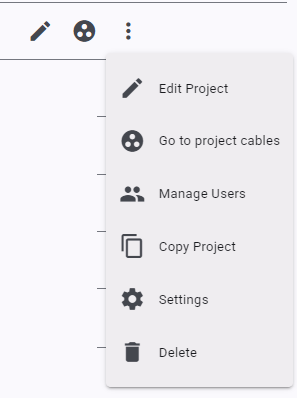
Your projects are listed in a table. You can filter what is displayed by typing search terms and sort the table by clicking on headings. For each project, you can do the following actions:
- edit – edit the project’s details
- cables – go to view/edit the project cables
- users – add or remove users/collaborators to the project
- copy – copy a project (including all cables)
- settings – set advanced settings for the project
- delete – delete the project
Creating New Projects
Projects reflect the way you work and are used to organising cable schedules. Once you create a project, you will be able to access its cable schedule and select and work with cables.
To create a new project, click the ‘+ Add Project’ button and enter the project number and name.
- Environmental: default values can be set.
- Description: to keep track of your projects, give the project a meaningful number (or other identifier) and a description.
- Branding: You can change the project logo here. The logo will appear on report headings.
Summary/Comments: You can enter comments or summary information about your project here. Comments are printed on various reports. In particular, the ‘Project Cable Sizing’ report will include comments as the first section. Making it ideal for documenting scope, assumptions, findings, and other relevant project information.
Updating A Project
You can update projects by clicking the update button on the projects menu. On the update page, you can change the project number and description, set default values or update the logo.
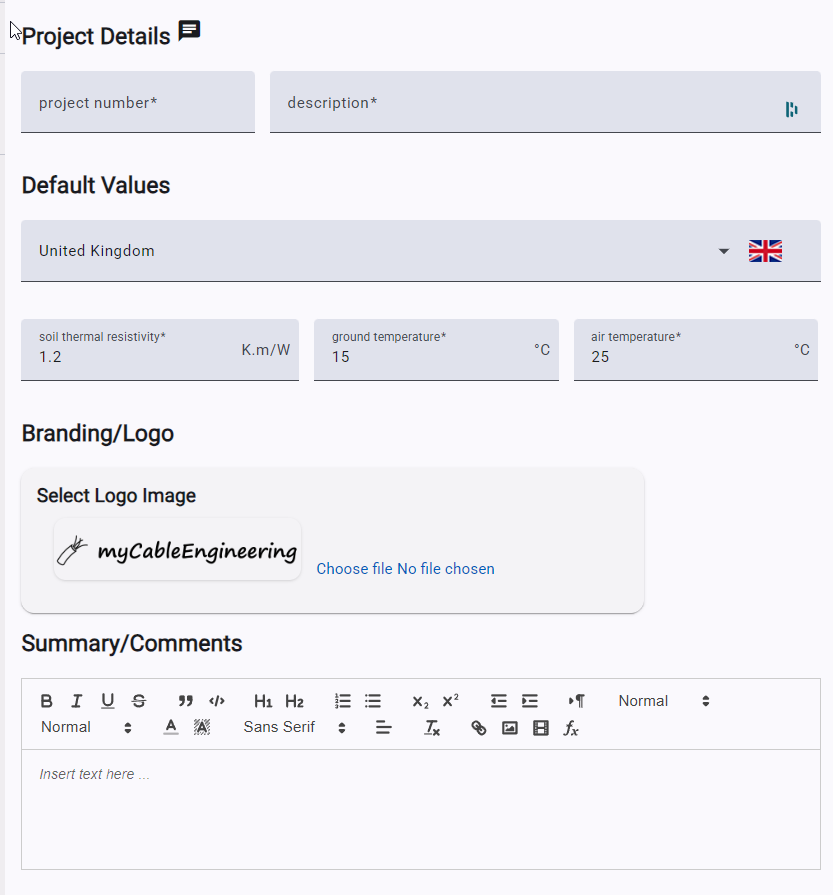
Default values set for temperatures and soil thermal resistivity are used when a new cable is created. Although they can also be overridden in the cable itself. If you know the actual site conditions, enter them; otherwise, selecting a country from the drop-down list will populate the default values with the reference conditions specified in the IEC standards.
The logo appears on reports; you are free to change it and upload your own logo if you wish.
After creating a project, continue with myCableEngineering Software Cables to add and size project cables, or return to the software help overview.