
These software help notes explain the main areas of myCableEngineering: the dashboard, projects, cable schedules, reports, billing and troubleshooting. Start here if you are new to the application, then use the links below for task-specific guidance.
Software Help Topics
- Projects – create projects, set defaults, manage collaborators and configure report branding.
- Cables – create, edit and size cables, including installation, voltage drop and fault checks.
- Reports and Export – generate PDF reports, reopen recent reports and export project data.
- Billing – manage subscriptions, licences and enterprise users.
- FAQ – troubleshooting notes and common questions.
Dashboard
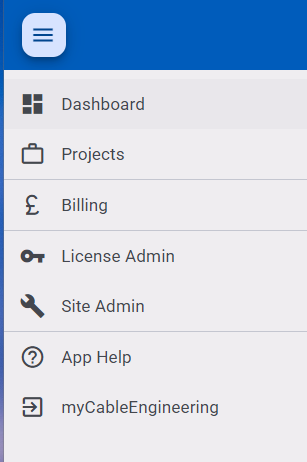
The dashboard is the application’s entry point. From here, you can quickly access cables for your recent projects or check the latest LME metal prices to see if your cables will increase or decrease in price.
You can turn off the navigation bar on the left using the menu icon. Available options will depend on your subscription model.
The standard reference lets you drill down into various tables, while equipment data lets you view standard data for common cables and PV modules.
At the bottom of the navigation menu, you can see and edit your profile as well as log out of the application.
Projects
Projects are containers to hold your cables. To learn how to add and edit projects, see the dedicated Projects post.
Cables
To learn how to add, edit, and size cables, see the dedicated Cables post.
Reports and Export
Generate PDF reports for all cables in a project or a selected group, reopen recent reports, and export your project data. See the Reports and Export guide for instructions and a video demonstration of the Project Cable Sizing report.
Video Tutorials
- How to size a cable — follow a worked cable-sizing example.
- Project Cable Sizing report — watch how project information, cable schedules and calculation results form an engineering report.
We have video tutorials on our YouTube channel.