
Learn how to generate PDF reports for your project cables, reopen recent reports and export your project data from myCableEngineering.
Generating reports and exporting data
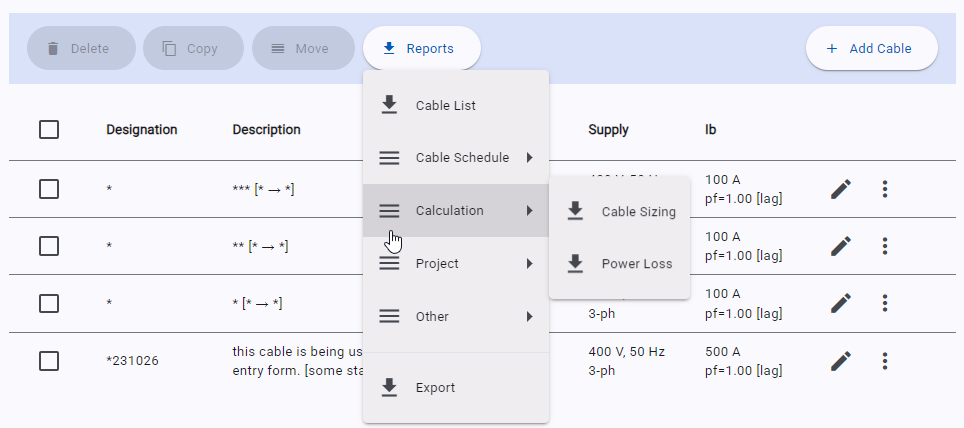
Reporting is available through the ‘Reports’ button and drop-down menu on the cables page. When you generate a report, it includes all project cables by default. If you select cables using the selection checkbox, the report includes only those cables. You can also export your cable data from the same menu.
Viewing your report
When a report is generated, your browser opens the PDF report from its secure online location.
Depending on your browser and PDF settings, the report may open in a new tab or window, open in a PDF application such as Adobe Acrobat, or be downloaded to your Downloads folder.
If the report does not appear:
- Check your browser’s Downloads list and your computer’s Downloads folder.
- Check whether the report has opened in another browser tab, window, or PDF application.
- If you still cannot find or open the report, try again using an Incognito/Private browsing window. This can help identify problems caused by browser extensions or cached browser data.
Once the PDF is open, use the PDF viewer’s Print option to print the report.
Example: Project Cable Sizing report
This walkthrough demonstrates the Project Cable Sizing report, one of the reports available in myCableEngineering. It brings project information, cable schedules, comments and supporting calculations into one document for clients, contractors and project teams.
For chapter links and the written transcript, visit How to Generate a Project Cable Sizing Report — Video Tutorial.
Recent Reports
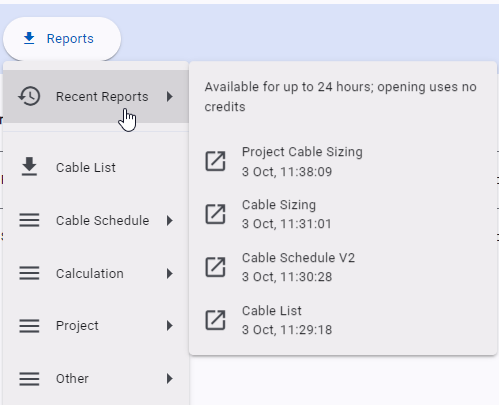
If you lose a generated report, you can reopen it at no cost using the “Recent Reports” option. This option will appear only if you have recent reports to view. Reports are available for up to 24 hours and use no credits to open.
Using Exported Data
Exported data is provided in JSON format and contains project, cable, and calculation summary information. It includes all user inputs and calculation results used within the application and its reports.
TIP: To explore the data, try opening the exported file in a free online JSON viewer. Once you’re familiar with its contents, you can use your favourite AI tool to extract, organise or summarise the information you need.
Related software guidance
- Software Basics — start here for an overview of the application.
- Projects — create projects, set defaults and configure report branding.
- Cables — add, edit and size cables before reporting.